Webhook Setup Guide
Configure webhooks in the Moveris Developer Portal to receive verification results automatically instead of polling.
In plain terms
Webhooks let your server get notified the moment a verification finishes—no need to keep asking "is it done yet?" Your server receives a POST with the result (live or fake), so you can update your database, trigger workflows, or notify your users immediately.
Prerequisites
- A Moveris account and at least one API key
- Access to the Moveris Developer Portal — Webhooks
- A publicly reachable HTTPS endpoint on your server to receive webhook events
Required API key scopes
Webhook configuration requires an API key with: webhooks:read, webhooks:write. Keys with no scopes have full access. See Authentication.
Private infrastructure
Configure webhooks only in the Developer Portal. The Portal, Moveris API (v2), and Developer Portal API are the only public-facing services.
Step-by-Step Setup
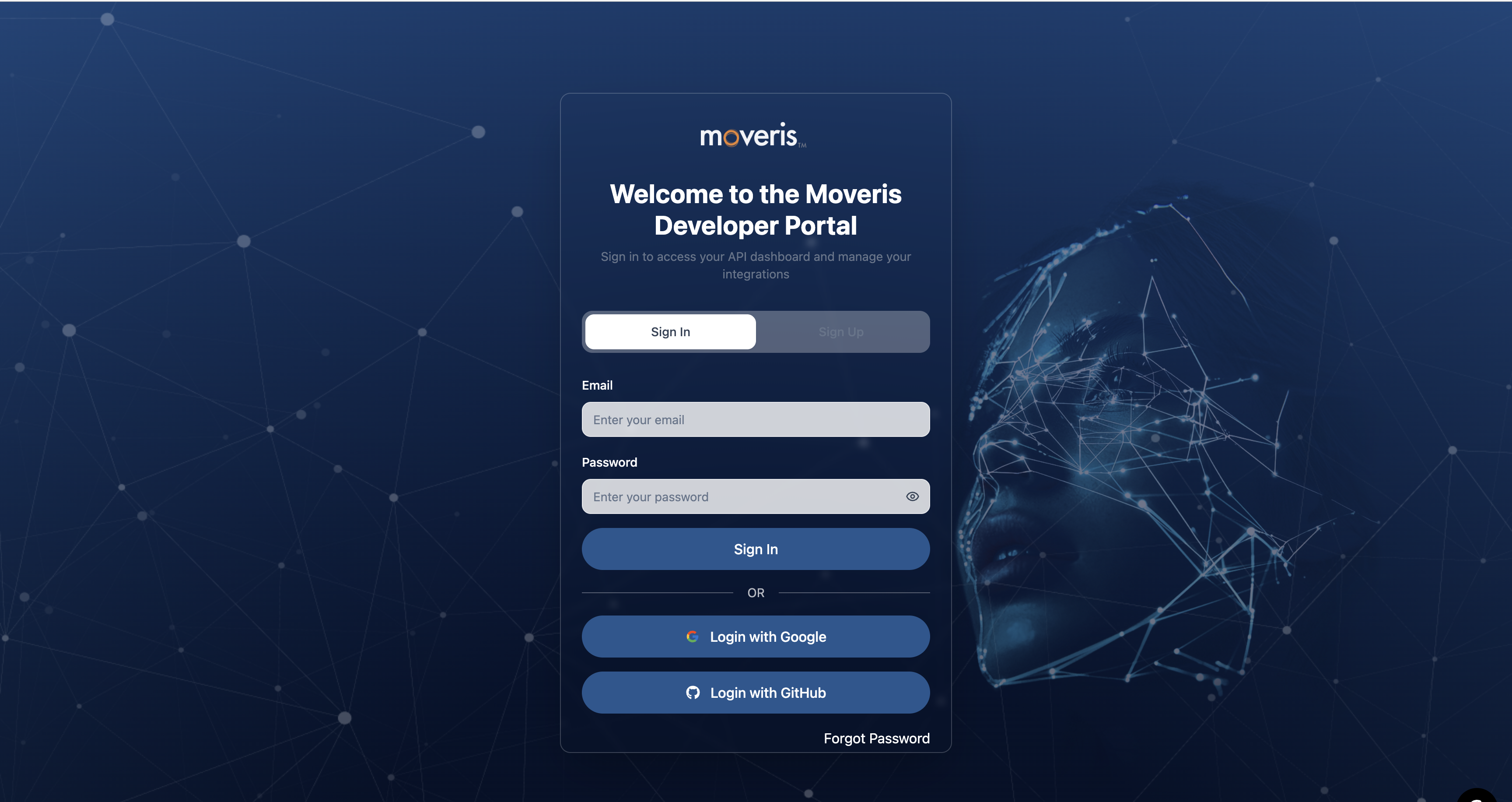
Step 1: Sign in to the Developer Portal
- Open the Moveris Developer Portal — webhooks: developers.moveris.com/webhooks
- Sign in with your credentials.
Screenshot
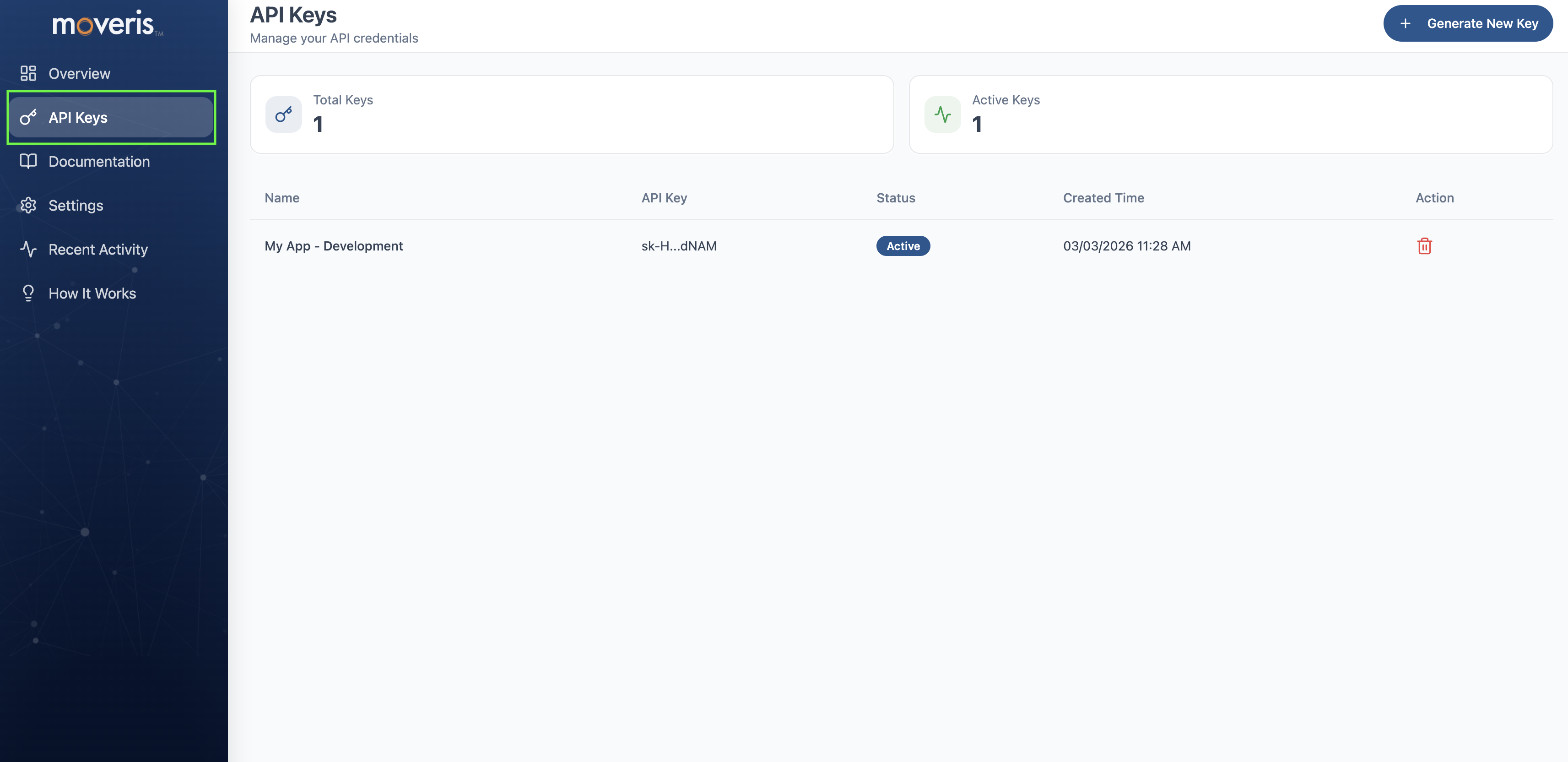
Step 2: Navigate to API Keys
Need an API key?
If you don't remember how to create your API key, see How to obtain your API key.
Screenshot
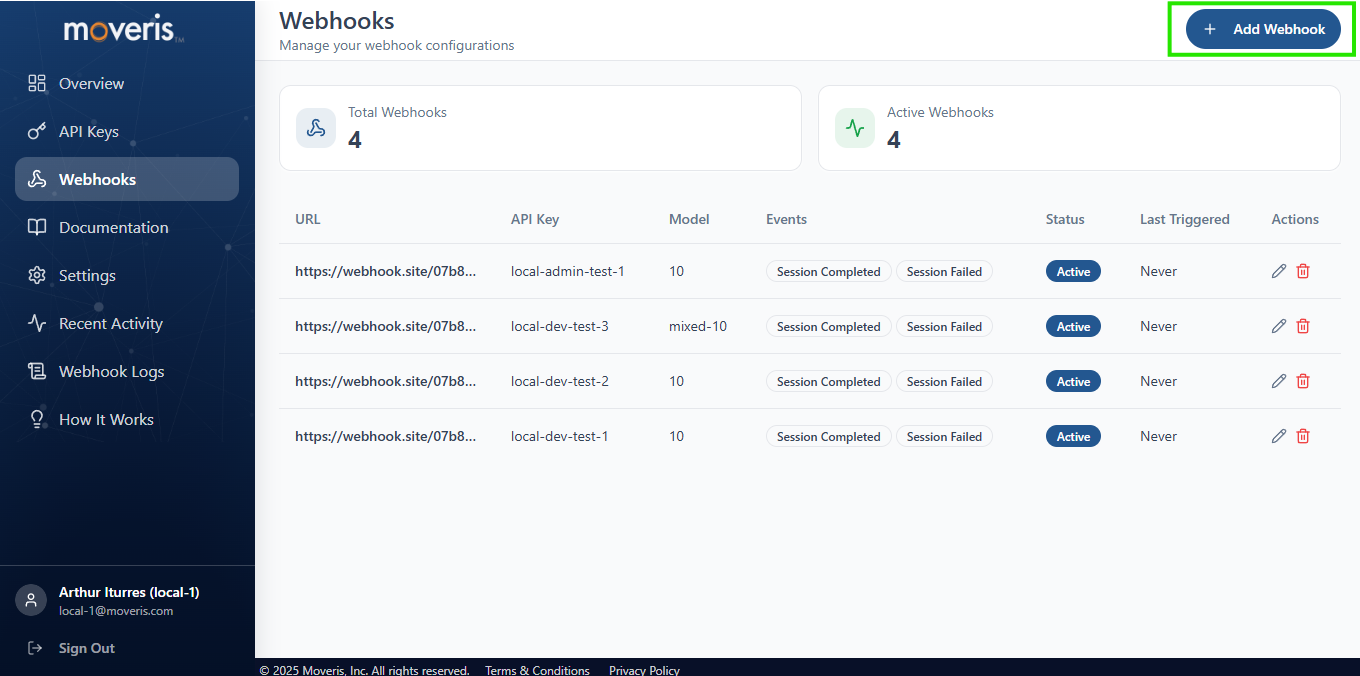
Step 3: Select an API Key and Open Webhook Configuration
- Find the API key you want to configure webhooks for.
- Click on the key (or the Webhooks / Settings action) to open its detail view.
- Locate the Webhooks section or Configure Webhook button.
Screenshot
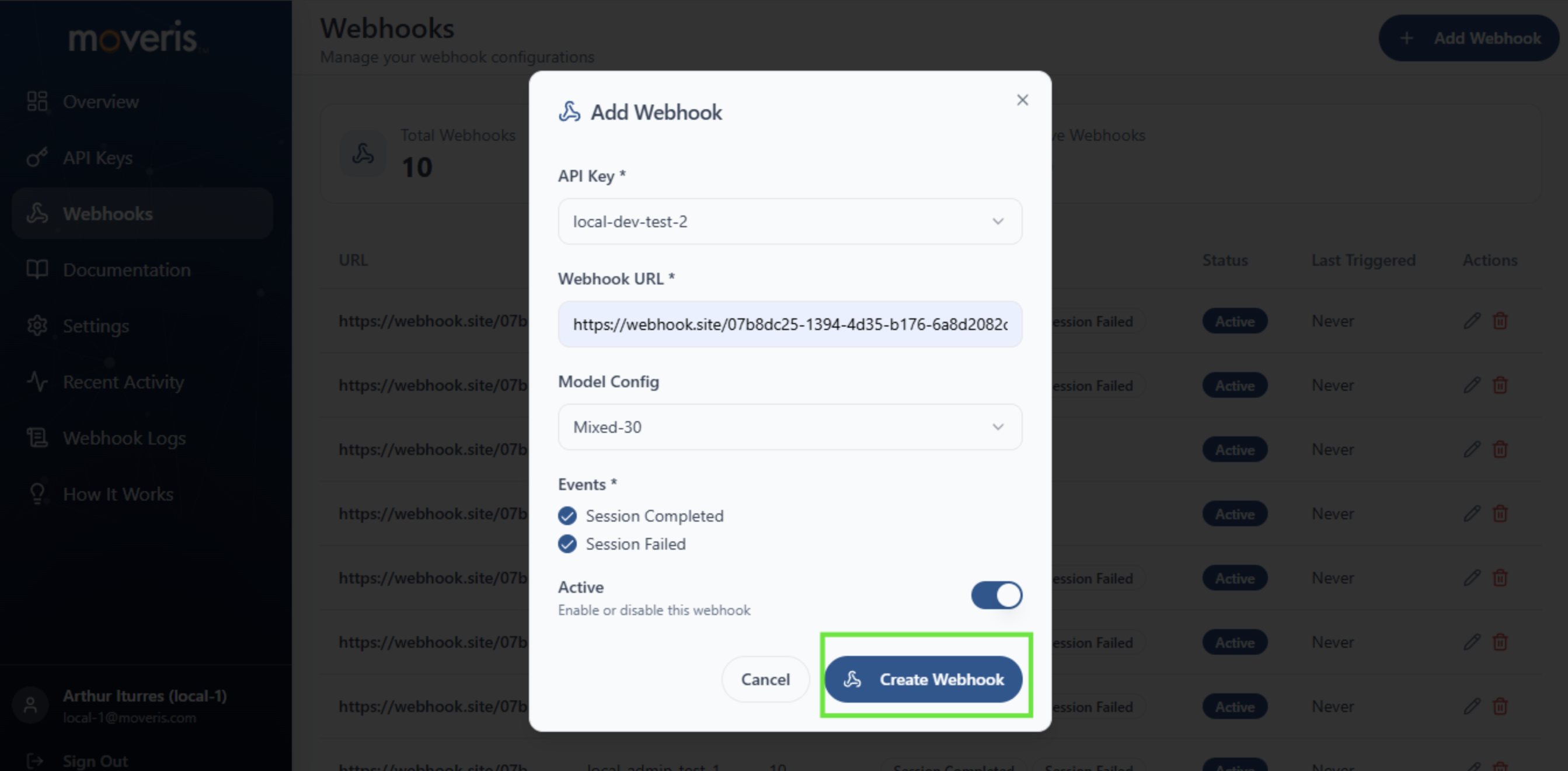
Step 4: Add a Webhook URL
- Click Add Webhook or Configure Webhook.
-
Enter your webhook URL. It must be:
- HTTPS (required for security)
- Publicly reachable from the internet
- A valid POST endpoint on your server
-
Example:
https://your-app.com/api/moveris/webhook
Screenshot
Step 5: Choose Model Configuration (Optional)
- Select the detection model for this webhook (e.g.,
mixed-10-v2,mixed-30-v2,mixed-60-v2). - Each combination of API key + URL + model can have one webhook.
| Model | Frames | Use Case |
|---|---|---|
| mixed-10-v2 | 10 | Fast verification |
| mixed-30-v2 | 30 | Standard KYC (recommended) |
| mixed-60-v2 | 60 | High security |
| mixed-90-v2 | 90 | Extended temporal coverage |
| mixed-120-v2 | 120 | Maximum temporal coverage |
Screenshot
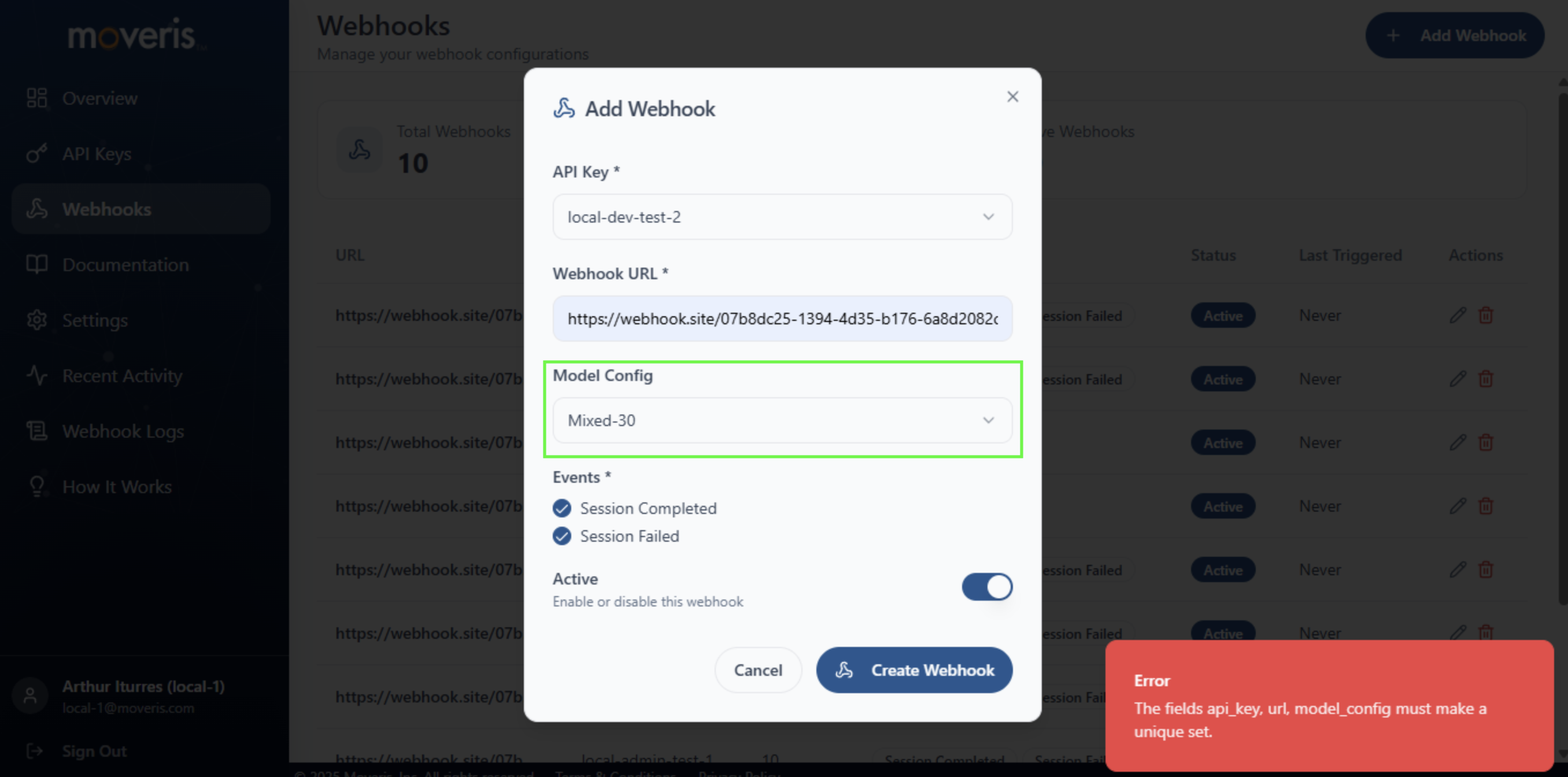
Step 6: Save and Copy the Webhook Secret
- Click Save or Create to register the webhook.
- After creation, the Developer Portal displays a Webhook Secret. Copy it immediately—it is shown only once.
- Store the secret securely on your server. You will use it to verify the
X-Webhook-Signatureheader and ensure requests come from Moveris.
Secret visibility
The webhook secret is shown only once after creation. If you lose it, you must create a new webhook configuration.
Screenshot
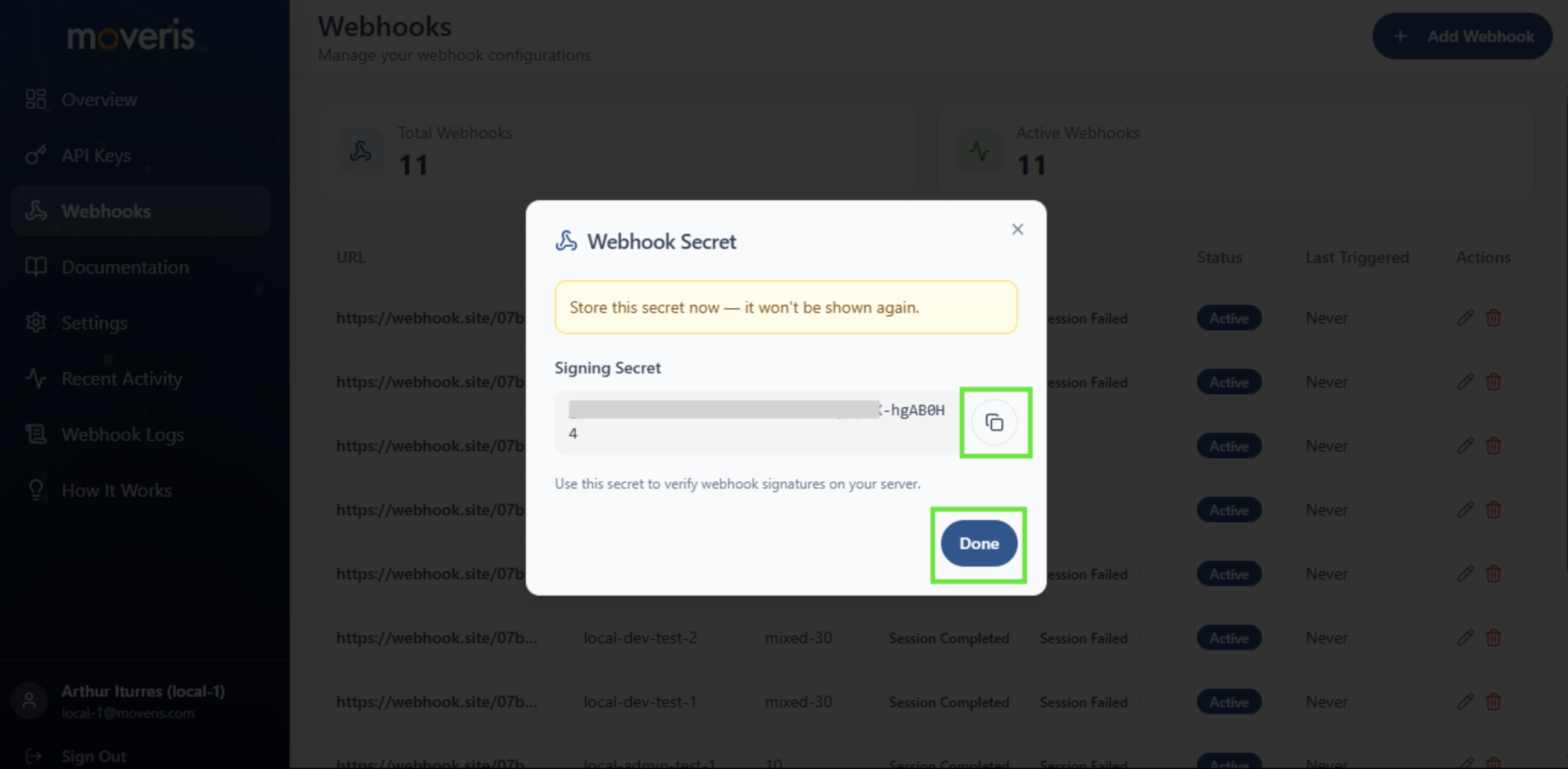
Step 7: Verify Configuration
- After saving, your webhook appears in the list with status Active.
- You can view delivery logs (success/failure) from the Developer Portal.
- Trigger a test verification to confirm your endpoint receives the payload.
Screenshot
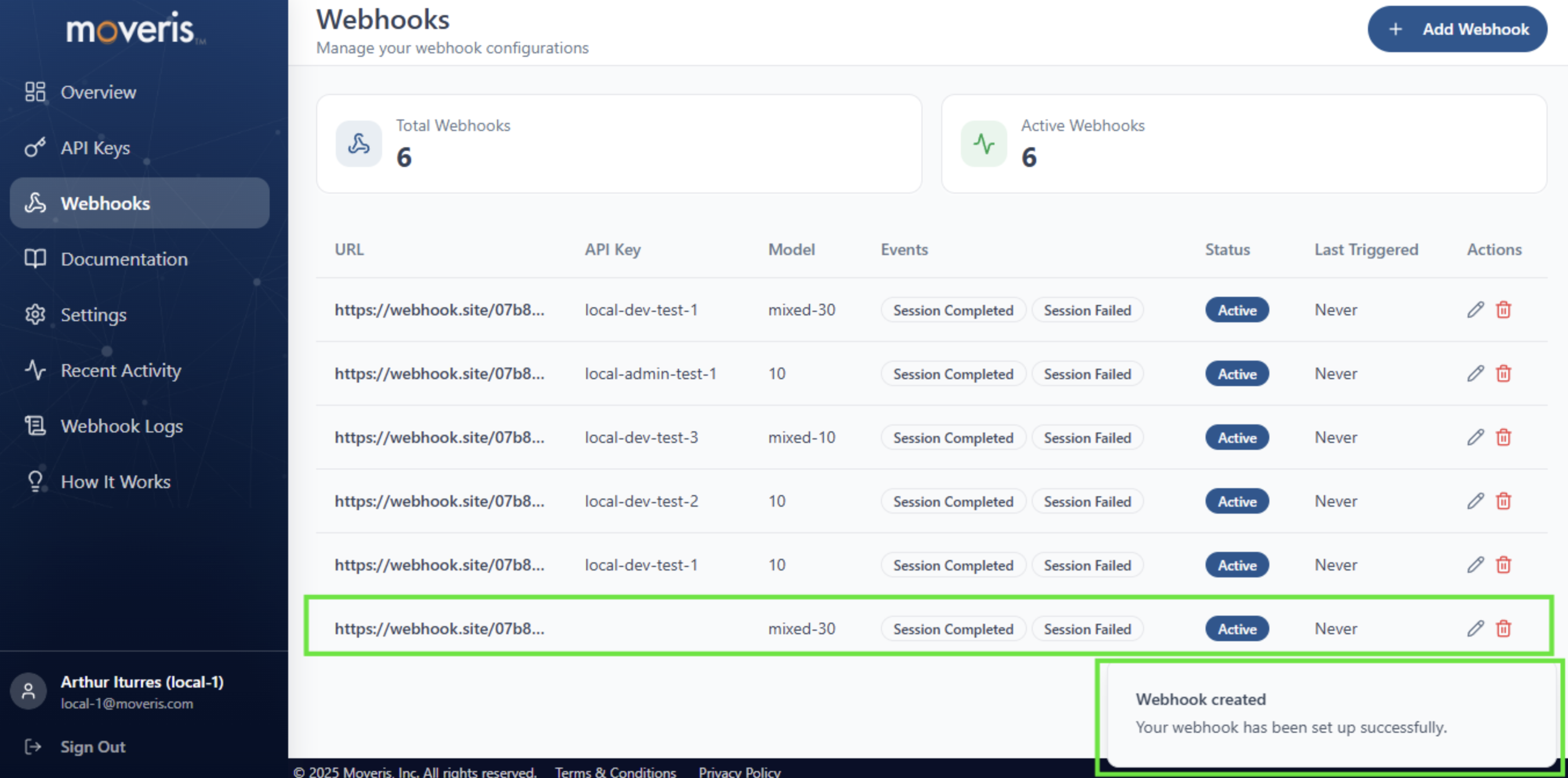
Webhook Payload
Not wrapped in the API envelope
Webhook payloads are sent directly by the Moveris delivery service, NOT through the API response middleware. They use the { event, session_id, timestamp, data } structure shown below — they are not wrapped in the { data, success, message } envelope that API responses use.
When a verification completes, Moveris sends an HTTP POST to your URL with:
| Header | Description |
|---|---|
Content-Type | application/json |
User-Agent | Moveris-Webhook/1.0 |
X-Webhook-Event | verification.completed |
X-Webhook-Session | Session ID (UUID) |
X-Webhook-Signature | sha256=<hmac_hex> — HMAC-SHA256 of the body |
Body example:
{
  "event": "verification.completed",
  "session_id": "550e8400-e29b-41d4-a716-446655440000",
  "timestamp": "2026-02-10T15:26:42.123456Z",
  "data": {
    "verdict": "live",
    "real_score": 0.94,
    "score": 94.0,
    "confidence": 0.94,
    "type": "VERY HIGH",
    "model": "mixed-10-v2",
    "input_source": "rest_frames",
    "processing_ms": 845,
    "frames_processed": 10,
    "tenant_metadata": null,
    "warning": null,
    "created_at": "2026-02-10T15:26:42.123456Z"
  }
}
Verifying the Signature
To ensure the request comes from Moveris, verify X-Webhook-Signature:
- Get the raw request body as bytes.
- Compute
HMAC-SHA256(body, secret)and convert to hex. - Compare with the value in the header:
sha256=<your_computed_hex>.
import hmac
import hashlib

def verify_webhook(payload_bytes: bytes, signature_header: str, secret: str) -> bool:
    expected = "sha256=" + hmac.new(secret.encode(), payload_bytes, hashlib.sha256).hexdigest()
    return hmac.compare_digest(expected, signature_header)
Related
- Overview — What webhooks are and when to use them
- Quick Start — Minimal steps to get started
- Tools Reference —
verify_human_presencewith optionalcallback_url - Session Lifecycle — Polling vs webhook strategy
- API Key — How to obtain API credentials